How it Works
Swipe through every tool in AreaCalc GPS, step by step.
Tap to measure
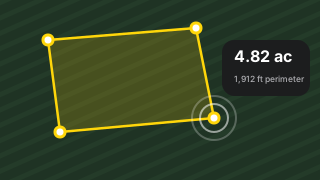
Tap the corners. Get the acres. That’s it.
- Tap the map at each corner of the area, in order around its edge.
- After three points the shape fills in, and the area and perimeter appear.
- Keep tapping to add corners. Tap close to an edge to add a point in the middle of it.
- Tap the save button when you're done, and give the measurement a name.
Fix anything
Drag a corner, add one, undo a slip. Every change can be reversed.
- Tap and hold any point until it turns blue, then drag it. The area updates as you drag.
- Hold a point for its menu, then choose Remove to delete it.
- Tap close to an edge to add a point in the middle of it.
- Use undo and redo at the bottom of the screen to step back and forward through your changes.
Acres or hectares
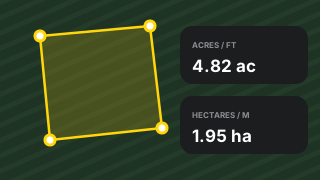
Area and perimeter in the units you work in, switched with one tap.
- The area shows in two units at once, such as acres and square feet.
- Tap the units under the area to switch between US and metric.
- Or choose a default in the menu under Settings → Units.
Find any place
Search a town or address, or paste coordinates, and you’re there.
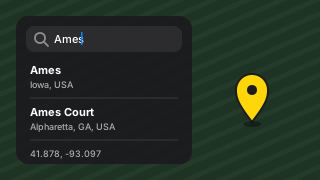
- Tap + and choose Find a place.
- Start typing a town, address or landmark. Places near where you're looking come first.
- Choose one and the map flies there, with a pin on the spot.
- Type coordinates such as 41.878, -93.097 to go to an exact position. Your recent places are listed for next time.
See the fence lines
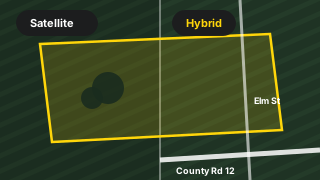
Sharp satellite imagery, with road names when you want them.
- Open the menu (☰) and tap Settings.
- Under Map, choose Hybrid or Satellite.
- Tap the locate button to center the map on where you are.
Unlimited measurementsPro
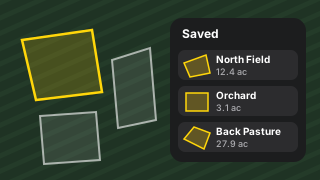
Save every field you measure. Never replace one again.
- Save as many measurements as you like, with no more replacing the one you have.
- Every saved field stays on the map. Hold one to edit it.
- Find any of them in Saved Measurements, with its area, perimeter and details.
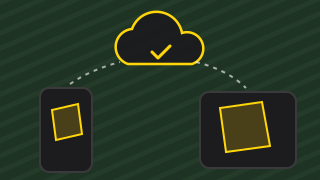
- Saved in the cloud, so a lost or new phone doesn't lose your measurements, and they appear on every device you sign in on.
All your fields, one mapPro
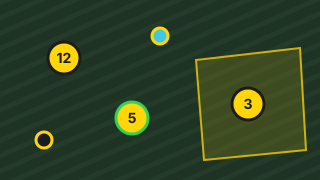
Everything you’ve measured stays on the map, grouped when you zoom out.
- Saved fields show as faint outlines on the map.
- Hold one to open it for editing.
- Zoomed out, fields too small to see group into a yellow badge with a count.
- Tap a badge to zoom in to its fields. Or find any field in Saved Measurements in the menu.
ProjectsPro
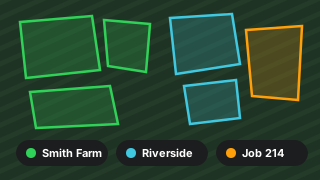
Color-code fields by farm, client or job.
- Make a project for each farm, client or job, and give it a color.
- Pick the project when you save a measurement, or later from its details.
- Fields show on the map in their project's color.
- Filter Saved Measurements to one project to see just its fields.
Exact coordinatesPro
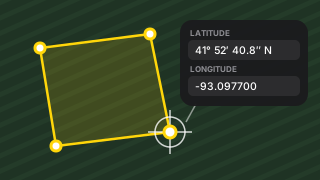
Start from a survey pin. Type it in decimal or DMS.
- Tap + and choose Add point by coordinates.
- Or hold any point and choose Edit coordinates to move it to an exact position.
- Type decimal degrees (41.878, -93.0977) or degrees, minutes and seconds (41° 52′ 40.8″ N).
- Paste a “latitude, longitude” pair to fill both fields at once. A point far from the rest is double-checked.
Cut-outsPro
Subtract the barn, the pond, the house. Get the real usable area.
- With the shape finished, tap the scissors.
- Tap around the area to remove, inside the shape or along its outline. The area updates as you go.
- Tap ✓ to apply it, or ✕ to cancel. Add as many cut-outs as you need.
- Drag a cut-out's indigo points to adjust it, or hold one to delete the cut-out.
Walk the boundaryPro
Walk the edge with your phone. The app draws the field.
- Tap Record and walk the boundary at your own pace.
- At each corner, tap Mark corner. The app waits a moment for a sharp GPS fix, so the corner lands where you stood.
- Back at the start, tap ✓. Your trail becomes a clean shape, with your marked corners kept exactly.
- Adjust it like any drawn shape, then save.
Cloud backupPro
Lose your phone, not your fields. Synced on iPhone and iPad.
- Create your account from the menu after going Pro.
- Everything you save backs up automatically, and changes sync between your devices.
- On a new phone or iPad, sign in and your measurements come right back.
- Delete your account any time from the app, along with its cloud data.